How to Reset Windows Password without Losing Data
Forgot Windows password and can't log in to your PC? I can help you reset forgotten or lost Windows local administrator, domain administrator, and other user account passwords instantly! Regain access to your locked computer without reinstalling the operating system. 100% recovery rate guaranteed.


Key Features & Benefits
Please Subscribe to my: YouTube Channel
- 100% recovery rate.
- Reset local Administrator and other account passwords.
- Reset forgotten passwords for Active Directory accounts.
- Change or reset domain administrator passwords on a Windows Active Directory (AD) Server.
- Enable and unlock a Windows account that is disabled, locked out or expired.
- Promote any standard / limited user account to an administrator.
- Bypass Windows user password without overwriting your old password.
- Reset Windows passwords with a bootable CD, DVD or USB flash drive.
- Support password reset for Windows 11 / 10 / 8 local accounts, as well as Microsoft accounts.
- Support Windows 11 / 10 / 8 computers with UEFI Secure Boot, including Microsoft Surface Pro.
- Support Windows 11 / 10 / 8 / 7 / Vista / XP, Windows Server 2000, 2003, 2008, 2012, 2016, 2019, 2022, 2025.
- Remove logon time restrictions on local accounts and Active Directory accounts.
- Disable "Force Smart Card Login".
- Simple, intuitive graphic interface.
- FREE technical support.
Wide Compatible
- Support FAT16, FAT32, NTFS, NTFS5 file systems.
- Support RAID/SATA/IDE/ SCSI/SAS hard drives, and virtual hard disk (*.vhd, *.vhdx, *.iso).
- Support Windows 11, 10, 8, 7, Vista, XP, 2000, Server 2025, 2022, 2019, 2016, 2012 (R2), 2008(R2), 2003(R2).
Secure & Reliable
Forgotten Windows password can be reset easily with PCUnlocker even if you don't have access to any Windows account. Simply boot your PC from a bootable CD/DVD or USB and reset any password instantly! No need to reinstall Windows, no data loss!
Learn to use it
Step 1: Create a bootable CD/DVD or USB flash drive
Download the PCUnlocker and save it on any computer you have access to. Unzip the downloaded file; there should be an ISO image file: pcunlocker.iso. You can use the BurnCDCC program to burn the ISO image to a blank CD/DVD, or burn it to a USB flash drive using ISO2Disc.
Step 2: Set BIOS to boot from CD/DVD or USB flash drive
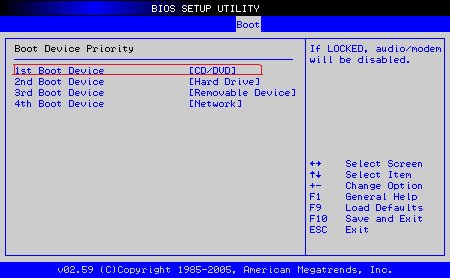
Boot your locked computer. When it is powered on, check the boot screen for the setup key (i.e. DELETE key, F8 key, F2 key) to enter BIOS Setup Utility.
Choose the BOOT menu and set Boot Device Priority option: Set the 1st Boot Device to CD/DVD-ROM if what you created is a bootable CD/DVD, or set the 1st Boot Device to Removable Device for booting from a USB flash drive. Press F10 to save your changes.
Step 3: Boot Your Computer from CD/DVD or USB flash drive
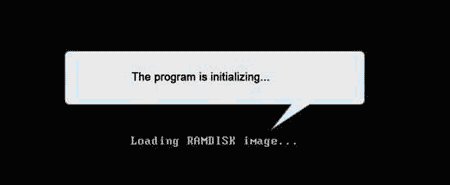
Insert the newly burned CD/DVD or USB flash drive into your locked computer and restart the computer. The boot loading screen should appear immediately.
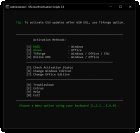
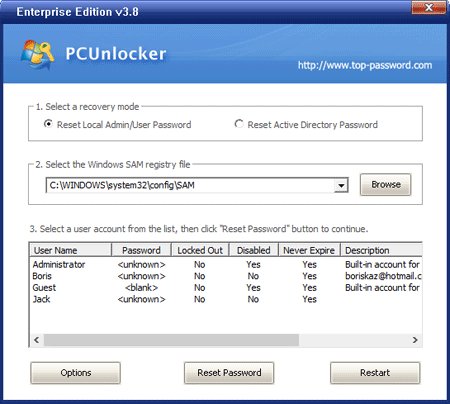
After the completion of the boot process, you see the main window of PCUnlocker.
Step 4: Reset Windows Password
Reset Local Admin/User Password: Select your Windows SAM registry file, and the program will automatically list all user accounts. Select a user account and click the Reset Password button to reset the password to blank.
Reset Active Directory Password (For domain controller only): Select your Windows Active Directory database (ntds.dit) file, and the program will automatically list all domain accounts. Select a user account and click the Reset Password button to change the password to P@ssword123.
Click the Restart button and take out the password reset disk. Restart your computer, and you'll find you can get into the computer directly without being asked for a password.
Sounds good?
Go ahead and subscribe to the YouTube channel
Share
What's Your Reaction?
 Like
1
Like
1
 Dislike
0
Dislike
0
 Love
1
Love
1
 Funny
0
Funny
0
 Angry
0
Angry
0
 Sad
0
Sad
0
 Wow
1
Wow
1